When opening a solution in Visual Studio 2008, I kept getting the following message in the Output window:
This solution is offline. [Team Foundation Server:http://server:8080/]The solution is offline because its associated Team Foundation Server is offline.
I kept having to go into the "change source control" and re-bind the solution. After a while, this began to get annoying. Then I found this post: http://www.eggheadcafe.com/software/aspnet/33487526/connecting-automatically.aspx. It turned out the solution was to set some registry keys. I navigated to HKEY_CURRENT_USER\Software\Microsoft\VisualStudio\9.0\TeamFoundation\Servers\ and changed "Offline" to 0 and "AutoReconnect" to 1. I've no idea how these got reset! (Please back-up your registry first if you want to try the same.)
bron
Posts tonen met het label TFS. Alle posts tonen
Posts tonen met het label TFS. Alle posts tonen
woensdag 26 mei 2010

maandag 14 december 2009
VS 2008 performance update
Goede tip! Als je veel projecten onder VS 2008 hebt hangen, gaat 'ie al snel swappen bij compileren. Een goede poging:
Hacking Visual Studio to Use More Than 2Gigabytes of Memory: "editbin /LARGEADDRESSAWARE devenv.exe" (Eerst DEVENV.exe backuppen!!)
Een andere optie is om MSBuild te gebruiken. Via de onsupported optie /m kunnen meerdere processoren gebruikt worden.
(Bron). Je moet dan wel een custom tool hiervoor aanmaken.
dinsdag 6 oktober 2009
Custom Check In policy with code coverage
I created a check in policy with a code coverage check. To archive this I've used the next process:
1) after testing write to a file (own extension) the test that has been done
2) in the validation part of the custom check in policy I open that particular file and read the corresponding code coverage percentage.
The code: in each test class:
So. That's step one. Now the custom check in. I used the example found in MSDN.
I only added some extra methods and references and modified some texts (they're in Dutch, but you can easily modify them. Some explanation: our business objects contain '.BL' in the filename (that's a check). A business object is composed of 2 files e.g.
'Task.BL.cs' (sometimes manually modified and named 'Task.BL.altered.cs') and 'Task.BL.custom.cs' (and out of scope: also a 'Task.resx') . The output-unitfile is created directly aside this files: 'Task.TU'. In this file the last test for this Business Object is specified.
First check is the existence of the '.TU' file.
Second check is the timestamp of the '.TU' compared to the business object file(s).
Third check is the existence of the data.coverage file.
Fourth check is the most important one: is a code coverage of 80% reached.
Last check is the existence of the resource file.
1) after testing write to a file (own extension) the test that has been done
2) in the validation part of the custom check in policy I open that particular file and read the corresponding code coverage percentage.
The code: in each test class:
..
        private static TestContext _currentContext;
..
        [ClassInitialize()]
        public static void MyClassInitialize(TestContext testContext)
        {
            _currentContext = testContext;
        }

        [ClassCleanup]
        public static void MyClassCleanUp()
        {
            File.WriteAllText(@"\.TU", _currentContext.TestDir );
        }
..
So. That's step one. Now the custom check in. I used the example found in MSDN.
I only added some extra methods and references and modified some texts (they're in Dutch, but you can easily modify them. Some explanation: our business objects contain '.BL' in the filename (that's a check). A business object is composed of 2 files e.g.
'Task.BL.cs' (sometimes manually modified and named 'Task.BL.altered.cs') and 'Task.BL.custom.cs' (and out of scope: also a 'Task.resx') . The output-unitfile is created directly aside this files: 'Task.TU'. In this file the last test for this Business Object is specified.
First check is the existence of the '.TU' file.
Second check is the timestamp of the '.TU' compared to the business object file(s).
Third check is the existence of the data.coverage file.
Fourth check is the most important one: is a code coverage of 80% reached.
Last check is the existence of the resource file.
using System;
using System.Collections.Generic;
using System.Linq;
using System.Text;
using Microsoft.TeamFoundation.VersionControl.Client;
using System.Windows.Forms;
using System.IO;
using System.Xml;
using System.Data;
using Microsoft.VisualStudio.CodeCoverage;

///
/// http://msdn.microsoft.com/en-us/library/bb668980.aspx
///
[Serializable]
public class AssociatedCheckInPolicy : PolicyBase
{
    public AssociatedCheckInPolicy()
        : base()
    {
    }

    public override string Description
    {
        get
        {
            return "AssociatedCheckInPolicy";
        }
    }

    // This is a string that is stored with the policy definition on the source
    // control server. If a user does not have the policy plug-in installed, this string
    // is displayed.  You can use this to explain to the user how they should
            // install the policy plug-in.
    public override string InstallationInstructions
    {
        get { return "To install this policy, read InstallInstructions.txt."; }
    }

    // This string identifies the type of policy. It is displayed in the
 // policy list when you add a new policy to a Team Project.
    public override string Type
    {
        get { return "AssociatedCheckInPolicy"; }
    }

    // This string is a description of the type of policy. It is displayed
    // when you select the policy in the Add Check-in Policy dialog box.
    public override string TypeDescription
    {
        get { return "Voordat deze check-in policy een business object doorlaat, moeten alle tests geslaagd zijn en een code coverage opleveren van minimaal 80%"; }
    }

    // This method is called by the policy framework when you create
    // a new check-in policy or edit an existing check-in policy.
    // You can use this to display a UI specific to this policy type
    // allowing the user to change the parameters of the policy.
    public override bool Edit(IPolicyEditArgs args)
    {
        // Do not need any custom configuration
        return true;
    }

    private string Hulp { get; set; }

    // This method performs the actual policy evaluation.
    // It is called by the policy framework at various points in time
    // when policy should be evaluated. In this example, the method
    // is invoked when various asyc events occur that may have
    // invalidated the current list of failures.
    public override PolicyFailure[] Evaluate()
    {
        for (int i = 0; i < PendingCheckin.PendingChanges.CheckedPendingChanges.Length; i++)
        {
            string className = PendingCheckin.PendingChanges.CheckedPendingChanges[i].LocalItem;
            // kijk of .BL erin voorkomt. (alleen voor BL-classes)
            if (className.Contains(".BL."))
            {
                // kijk of de bijbehorende unittests uitgevoerd zijn.
                if (File.Exists(className))
                {
                    string testUnitFile = className.Replace(".custom", "").Replace(".altered", "").Replace(".cs", "");
                    testUnitFile = testUnitFile.Substring(0, testUnitFile.LastIndexOf(".")) + ".TU";
                    if (File.Exists(testUnitFile))
                    {
                        // kijk of de timestamp niet gewijzigd is.
                        PolicyFailure[] ret = new PolicyFailure[1];
                        string testdir = File.ReadAllText(testUnitFile);

                        if (File.GetLastWriteTime(testUnitFile) < File.GetLastWriteTime(className))
                        {
                            ret[0] = new PolicyFailure("De code is nieuwer dan de tests.", this);
                            return ret;
                        }

                        PolicyFailure pf = GenerateCodeCoverage(testUnitFile, testdir, @"c:\alurecs\");
                        if (pf == null)
                        {
                            // extra check: bestaat de resx?
                            string resxFile = testUnitFile.Replace(".TU", ".resx");
                            if (!File.Exists(resxFile))
                            {
                                Hulp = "Maak een resourcefile aan (generator)";
                                ret[0] = new PolicyFailure("Resource file niet aangetroffen", this);
                                return ret;
                            }
                            return new PolicyFailure[0];
                        }
                        ret[0] = pf;
                        return ret;
                    }
                    else
                    {
                        PolicyFailure[] ret = new PolicyFailure[1];
                        Hulp = "Voer de tests uit in de testclass (nieuwste template wel gebruikt?)";
                        ret[0] = new PolicyFailure("Geen unittest file gevonden", this);
                        return ret;
                    }


                }
            }
        }

        return new PolicyFailure[0];
    }


    /// THIS IS THE IMPORTANT PART!
    private PolicyFailure GenerateCodeCoverage(string testUnitFile, string testdir, string destdir)
    {
        string codecoveragedir = Path.Combine(Path.Combine(testdir, "In"), Environment.MachineName);

        string unitFile = testUnitFile;
        string className = unitFile.Substring(unitFile.LastIndexOf(@"\") + 1).Replace(".TU", "");

        // lees trx
        //
        //
        //
        string file = testdir + ".trx";
        XmlDocument doc = new XmlDocument();
        if (File.Exists(file))
        {
            doc.Load(file);
            // //TestRun/ResultSummary/Counters
            XmlNode xni = doc.SelectNodes(".")[0].ChildNodes[1].ChildNodes[1].ChildNodes[0];
            string passed = xni.Attributes["passed"].Value;
            string executed = xni.Attributes["executed"].Value;
            if (passed == executed)
            {
                // code coverage?
                string coverageFile = Path.Combine(codecoveragedir, "data.coverage");
                if (File.Exists(coverageFile))
                {
                    string binDir = Path.Combine(testdir, "Out");
                    CoverageInfoManager.ExePath = binDir;
                    CoverageInfoManager.SymPath = binDir;
                    CoverageInfo coverageInfo = CoverageInfoManager.CreateInfoFromFile(coverageFile);
                    CoverageDS data = coverageInfo.BuildDataSet(null);
                    DataRow dr = data.Class.Select(String.Format("ClassName='{0}'", className))[0];
                    int bcc = data.Class.Columns.IndexOf(data.Class.BlocksCoveredColumn);
                    uint bc = (uint)dr[bcc];

                    int bncc = data.Class.Columns.IndexOf(data.Class.BlocksNotCoveredColumn);
                    uint bnc = (uint)dr[bncc];

                    if (Convert.ToDouble(bc) / (Convert.ToDouble(bc + bnc)) < .8)
                    {
                        // error!
                        Hulp = "De 80% drempel is niet gehaald, maak meer tests.";
                        return new PolicyFailure("80% drempel niet gehaald", this);
                    }
                }
                else
                {
                    if (File.Exists(unitFile))
                        File.Delete(unitFile);
                    Hulp = "Run de tests uit in de testclass, code coverage is niet gevonden";
                    return new PolicyFailure("Geen code coverage gebruikt!", this);
                }
            }
        }
        else
        {
            if (File.Exists(unitFile)) File.Delete(unitFile);
            Hulp = "Voer de tests uit in de testclass";
            return new PolicyFailure("Voer testen uit!", this);
        }
        return null;
    }

    // This method is called if the user double-clicks on
    // a policy failure in the UI. In this case a message telling the user
    // to supply some comments is displayed.
    public override void Activate(PolicyFailure failure)
    {
        MessageBox.Show("1) Maak een testclass (laatste versie template)"
                       + Environment.NewLine + "2) Voer alle tests uit"
                       + Environment.NewLine + "3) Code coverage > 80%"
                       , "Oplossen van probleem");
    }

    // This method is called if the user presses F1 when a policy failure
    // is active in the UI. In this example, a message box is displayed.
    public override void DisplayHelp(PolicyFailure failure)
    {
        MessageBox.Show(Hulp, "Prompt Policy Help");
    }
}
dinsdag 16 juni 2009
TFS - Unit Test Adapter threw exception: Could not load file or assembly or one of its dependencies
TFS - Unit Test Adapter threw exception: Could not load file or assembly or one of its dependencies
If you ever get the following error:
Unit Test Adapter threw exception: Could not load file or assembly “dll module name” or one of its dependencies. Strong name validation failed. (Exception from HRESULT: 0x8013141A)
The most probable reason that is causing the error is that your modules are setup to be signed, but because you have enabled code coverage analysis (which adds code to the modules), the signing has been invalidated.
Here is how to fix it (or this is what I did to fix it - YMMV):
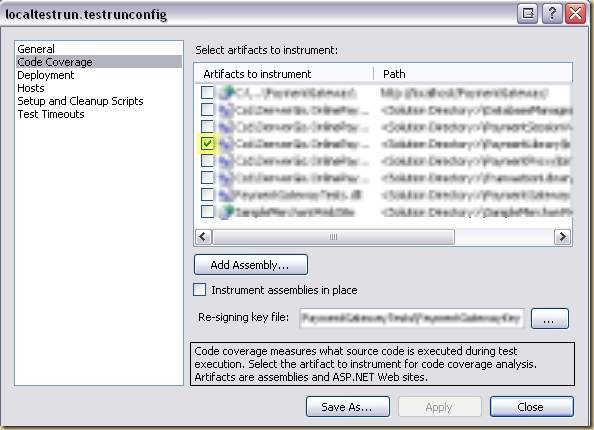
Under the Test menu of Visual Studio, goto Edit Test Run Configurations Local Test Run (“testrun name”)
You have 2 choices:
Disable Code Coverage Analysis,
or if you keep code coverage analysis enabled, then you need to provide the same key file used to sign your original assemblies as the re-signing key file.
If you ever get the following error:
Unit Test Adapter threw exception: Could not load file or assembly “dll module name” or one of its dependencies. Strong name validation failed. (Exception from HRESULT: 0x8013141A)
The most probable reason that is causing the error is that your modules are setup to be signed, but because you have enabled code coverage analysis (which adds code to the modules), the signing has been invalidated.
Here is how to fix it (or this is what I did to fix it - YMMV):
Under the Test menu of Visual Studio, goto Edit Test Run Configurations Local Test Run (“testrun name”)
You have 2 choices:
Disable Code Coverage Analysis,
or if you keep code coverage analysis enabled, then you need to provide the same key file used to sign your original assemblies as the re-signing key file.
Abonneren op:
Posts (Atom)